Open the Spray Records page
From the home screen, find the Spray Records tile on the Grower Dashboard.
01
Log in to FodderSafe as an Grower
02
Wait for the Home page to appear, then look for the GrowerDashboard section.
03
Click on the Spray Records tile (marked by the leaf icon).
Step 1 · Click image to zoom
Create Single Date Spray Record
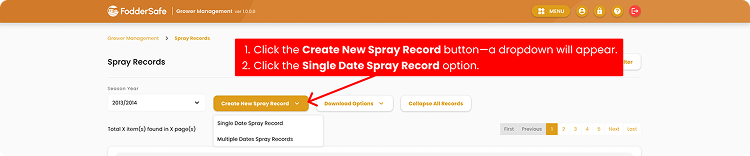
On the Spray Records page, kick off a new entry with the orange button.
01
Confirm you're on the Spray Records page (notice breadcrumb at top).
02
Click the Create New Spray Record button — a dropdown will appear.
03
Click the Single Date Spray Record option.
04
The 5-step wizard opens. The first step is Spray Dates.
Step 2 · Click image to zoom
Enter the Spray Date
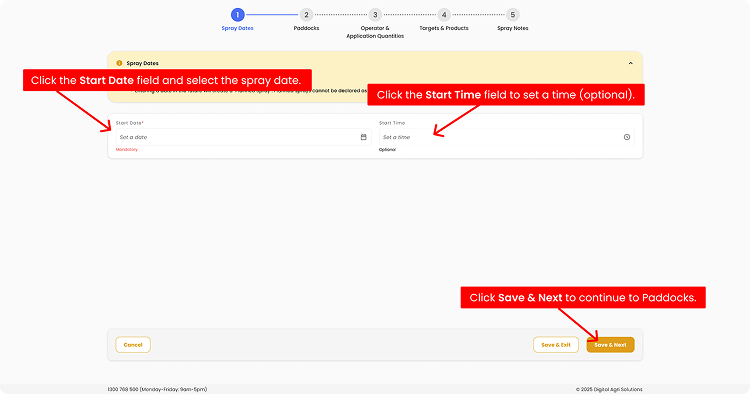
Pick the date the spray was (or will be) applied. Time is optional but useful for re-entry intervals.
01
Click the Start Date field and select the spray date.
02
Click the Start Time field to set a time (Optional).
03
Click Save & Next to continue to Paddocks.
Entering a future date creates a Planned Spray. It cannot be declared as completed until the start date arrives.
Step 3 · Click image to zoom
Select Paddocks & Growth Stages
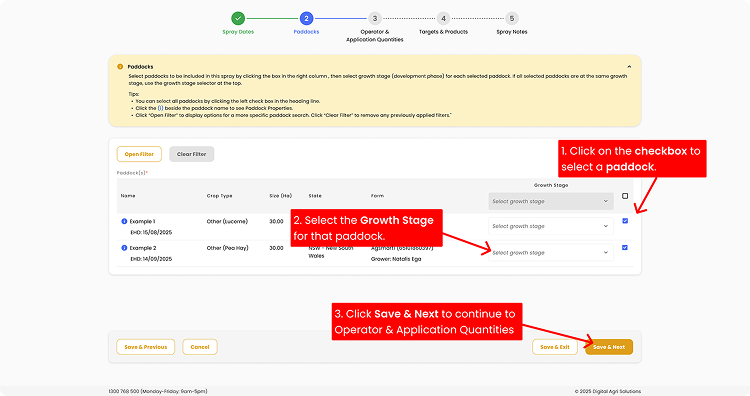
Tick each paddock included in the spray, then choose its growth stage from the dropdown.
01
For each paddock you want to include, tick the checkbox on the right.
02
Click the Growth Stage tab for that paddock and pick the phase (e.g. 40–49 Booting).
03
If all selected paddocks share one growth stage, use the bulk selector at the top of the column instead.
04
Click Save & Next to continue to Operator & Application Quantities.
Bulk-select & filtering tips.
- Click the checkbox in the table heading to select every paddock at once.
- Click Open Filter to narrow paddocks by specific options first.
Step 4 · Click image to zoom
Select Operator & Application Quantities
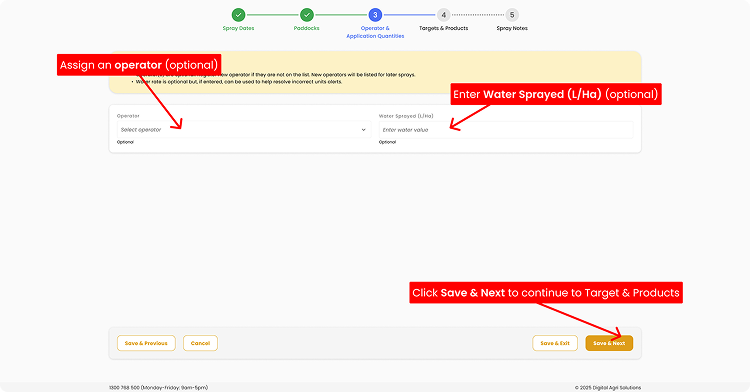
Record who applied the spray and how much water was used per hectare. You can skip this and come back later.
01
Choose an Operator from the dropdown (Optional).
02
Enter the Water Sprayed (L/ha) figure (Optional).
03
Click Save & Next to continue to Targets & Products.
Register them as an operator first — new operators will be listed for later sprays.
Step 5 · Click image to zoom
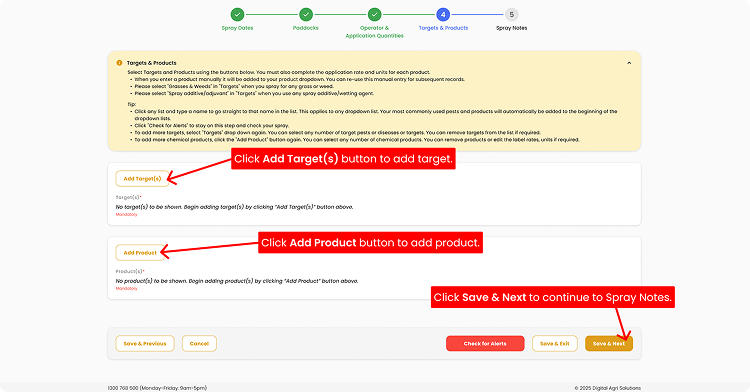
Add Targets & Products
Add what you're treating (the target) and the treatment product applied. You can add as many of each as needed.
01
Click Add Target(s)> and choose what you're treating (e.g. Grasses & Weeds) — you can add multiple targets at once.
02
Click Add Product and pick the product, then enter the rate and units — add products individually to ensure accuracy.
03
Repeat as needed — multiple targets and products can be added to the same record.
04
Click Save & Next to continue to Spray Notes.
Watch the alert/warning banner.
- Alerts/warnings are checked automatically before continuing to Spray Notes.
- You can also use the Check for Alerts button at the bottom to re-verify.
Step 6 · Click image to zoom
Add Notes and finish
Drop any additional information — detailing context, observations — then finish the record.
01
Click the Notes field and type anything worth recording (Optional).
02
Click the Save & Finish button — your spray record is created. 🎉
Saving & Retrieving Previous Notes.
- Click Save Current Note if you want to keep it as a re-usable template.
- Click Retrieve Previous Notes if you want to use previously saved templates.
Step 7 · Click image to zoom